If your MacBook’s Bluetooth is not working, restart the Mac and the accessory first, then toggle Bluetooth in System Settings, forget and re-pair the device, and remove USB 3 clutter near the Mac. Those four steps clear most software and interference problems in a few minutes. If the Bluetooth menu shows “Bluetooth: Not Available,” or the problem started after a liquid spill, a drop or a battery replacement, the cause is more likely hardware, and a component-level repair is the fix. We are Macwest Data Recovery & Mac Repair, serving West Los Angeles since 2006, and this guide shows you how to tell the two apart.
TL;DR
- Work the software fixes in order: restart, toggle Bluetooth, forget and re-pair, then remove interference. Most connection drops end here.
- “Bluetooth: Not Available” that survives a restart, a safe-mode boot and a fresh macOS install points to the wireless module or logic board, not to your accessory.
- If the Mac has had liquid, impact or a recent internal repair, stop troubleshooting and call 310-866-0828 for a free diagnosis and a same-day appointment in West LA.
Table of Contents
- Start by identifying which Bluetooth problem you have
- Ten fixes to try, in order
- When Bluetooth is a hardware problem
- Protect your data before any hardware repair
- Bluetooth keeps disconnecting: a closer look
- Other wireless problems that look like Bluetooth
- Our perspective: why Bluetooth faults deserve a proper diagnosis
- Same-day Mac repair in West Los Angeles
- FAQ
- Sources
Start by identifying which Bluetooth problem you have
Bluetooth failures on a MacBook fall into three groups, and each calls for a different response. Naming yours first saves you from trying fixes that cannot work.
| What you see | Most likely cause | Where to start |
|---|---|---|
| One accessory will not connect, others work | Accessory battery, stale pairing, or the accessory is paired to another device | Forget and re-pair that accessory |
| Devices connect, then drop every few minutes | Radio interference, a corrupted preference file, or a power-saving glitch | Interference checks, then preference reset |
| Bluetooth menu is grayed out, shows “Not Available,” or the toggle will not switch on | Software fault in the Bluetooth stack, or a failed wireless module or logic board path | Restart, safe mode, macOS reinstall, then hardware diagnosis |
| Bluetooth died right after a spill, drop or battery swap | Corrosion, a loose antenna or ribbon cable, or a damaged component | Hardware diagnosis, not more software resets |
The first row is a five-minute job. The last two rows are where people lose an afternoon, because no setting can repair a component that has stopped working.
Ten fixes to try, in order
Each step is cheap and reversible. Test the connection after every one so you know what worked.
1. Restart the Mac and the accessory
Shut down the MacBook completely, not just sleep it. Power the accessory off and on as well, and swap in fresh batteries or charge it. A flat or weak accessory battery is behind a large share of “Bluetooth is broken” reports, and a restart clears a hung Bluetooth daemon at the same time.
2. Toggle Bluetooth off and on
Open the Apple menu, choose System Settings, then click Bluetooth in the sidebar, as Apple’s own pairing instructions describe. Switch it off, wait ten seconds, and switch it on. If the switch will not move, skip ahead to the hardware section below after finishing steps 3 to 6.
3. Forget the device and pair it again
In the Bluetooth list, click the info (i) button beside the accessory and choose Forget This Device. Put the accessory into pairing mode, following its manual, and connect it again. Accessories that were last paired to an iPhone, iPad or another Mac often refuse a new host until you disconnect them from the old one.
4. Remove USB 3 and Wi-Fi interference
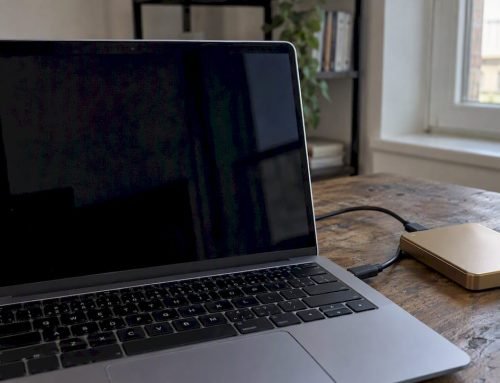
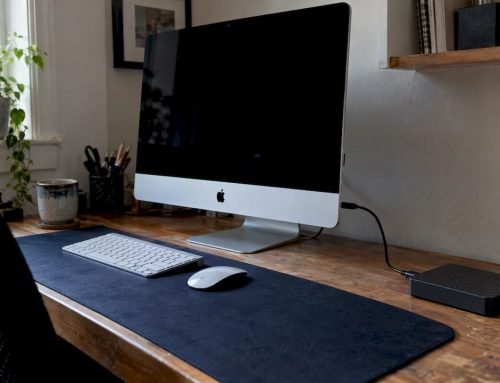
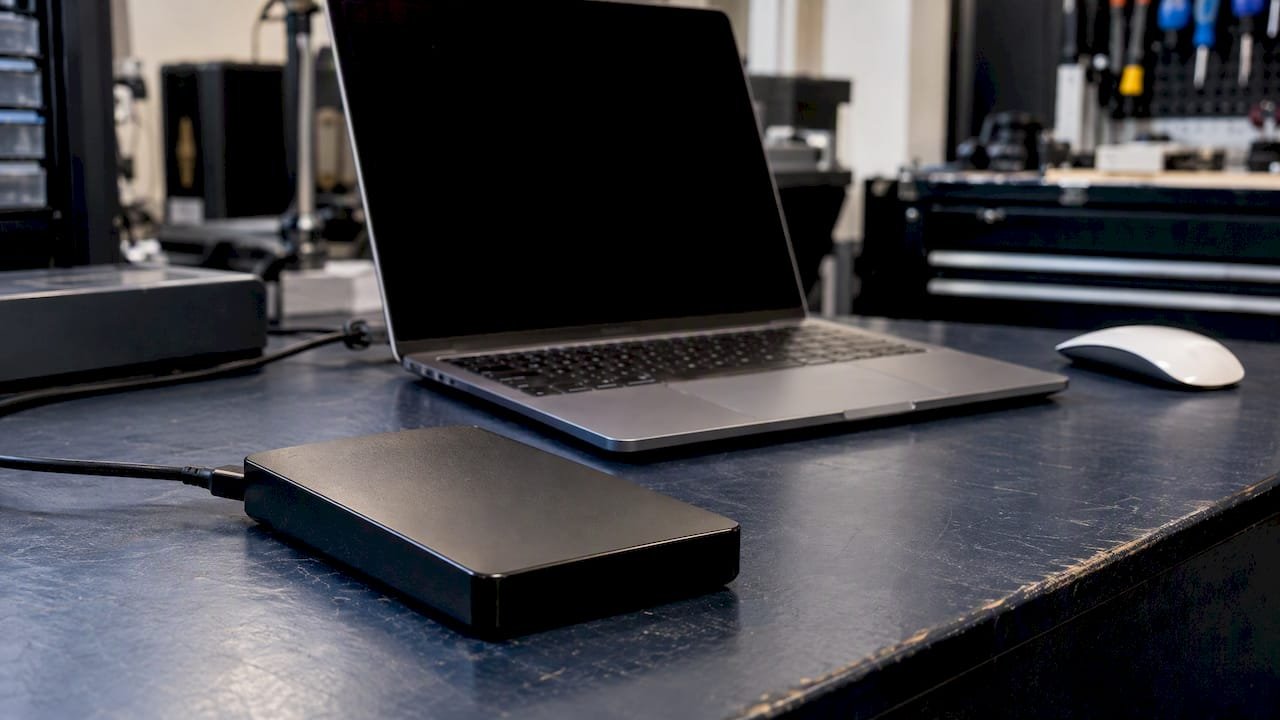
Bluetooth shares the 2.4 GHz band with Wi-Fi and many other devices. Apple Community discussions note that some USB 3 devices can create radio interference that disturbs 2.4 GHz accessories. In practice:
- Unplug USB 3 hubs, docks and external drives, then test again.
- Move the Bluetooth receiver side of your setup away from routers and metal surfaces.
- Keep a clear line of sight between the MacBook and a wireless mouse or keyboard.
If the connection becomes stable with the dock unplugged, you have found the cause, and a shielded cable or a different port often solves it. Wi-Fi and Bluetooth also share an antenna path on many MacBooks, so if your internet is flaky at the same time, read our guide on MacBook Wi-Fi failures.
5. Restart the Bluetooth daemon
Open Terminal from Spotlight and run sudo pkill bluetoothd, then enter your administrator password. macOS relaunches the service automatically. This approach is commonly shared in Apple Community threads and is safe, because it only restarts a background process.
6. Check for a macOS update
Open System Settings, then General, then Software Update. Bluetooth behavior changes between macOS releases, and a connection bug that appears right after an upgrade is often fixed in a point update. Install it, restart, and test.
7. Boot into safe mode
On Apple silicon, shut down, then press and hold the power button until startup options appear, select your disk, hold Shift and click Continue in Safe Mode. On an Intel MacBook, restart and hold Shift. Safe mode loads a minimal set of extensions. If Bluetooth works there, a third-party app, menu bar utility, VPN or audio driver is interfering, and you can remove those one at a time.
8. Reset the Bluetooth preference files
Corrupted preferences can make devices drop repeatedly. Experienced users delete the Bluetooth property list files from the Library folder and restart, which forces macOS to rebuild them. Before you delete anything, back up the Mac. If you are not comfortable working in system folders, skip this step: a wrong deletion costs you more time than it saves, and we can do it for you during a free diagnosis.
9. Create a new user account
In System Settings, add a new administrator user and sign in. If Bluetooth behaves normally there, the fault is in your account’s settings and not in the hardware.
10. Reinstall macOS without erasing your data
A reinstall from macOS Recovery replaces system files and leaves your documents in place. Because any system-level change carries some risk, make a Time Machine backup first. If Bluetooth still reads “Not Available” after a clean reinstall, software is ruled out.
When Bluetooth is a hardware problem
The wireless card on most modern MacBooks is not a separate plug-in part. On many Apple silicon models, Wi-Fi and Bluetooth hardware is integrated close to the logic board, and the antenna connections run through delicate cables. That is why a Bluetooth fault can be a board-level fault, and why swapping parts is not always an option.
Signs that point to hardware:
- The Bluetooth menu says Not Available immediately after startup, even in safe mode.
- Bluetooth failed at the same moment as Wi-Fi, or Wi-Fi range has also dropped sharply.
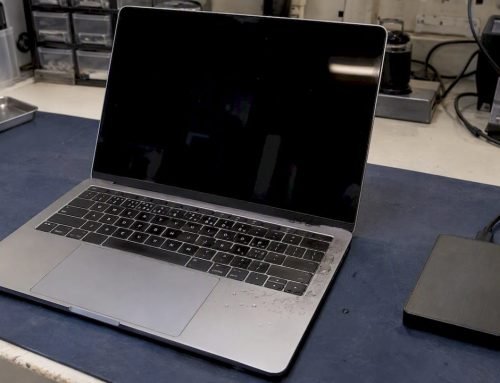
- The problem began after a liquid spill, even if the Mac seemed to dry out and keep working.
- It started after a drop, or after a battery replacement by someone who may have left an antenna or ribbon cable unseated.
- The Mac runs hot, has unexplained shutdowns or has other failing functions such as charging, sound or the trackpad.
That last pattern matters. A Mac that has suffered corrosion usually fails in clusters, a little at a time. If you also have problems with charging, speakers or the trackpad, the likely common cause is on the board, not in macOS.
Liquid damage: act in the right order
If liquid is involved, power the Mac off and keep it off. Do not charge it, do not press keys to “test” it and do not try to dry it with heat. Corrosion keeps progressing on powered boards. Our Apple liquid damage repair service cleans the board and tests each affected circuit, and a failed Bluetooth or Wi-Fi path is one of the common findings.
What component-level repair means here
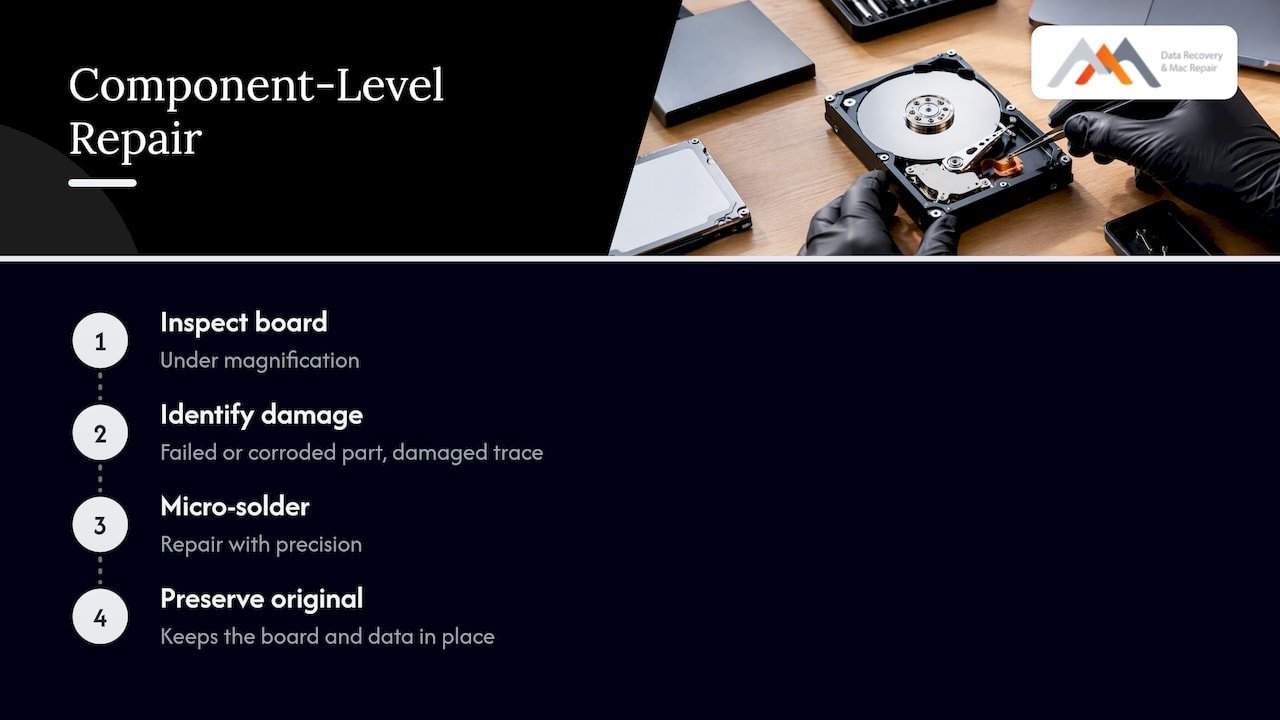
When the fault is on the logic board, replacing the whole board is often the quote you get from a retail counter, and the cost reflects that. Our approach is component-level: we inspect the board under magnification, find the failed or corroded part or damaged trace, and repair it with precision micro-soldering. That is the same discipline we describe in our step-by-step logic board repair guide. It keeps the original board, and with it your data, in place.
Protect your data before any hardware repair
Stop all disk writes immediately if the Mac shows any sign of storage trouble alongside the Bluetooth fault: slow saves, folders that will not open, a flashing question mark at startup or repeated unexpected restarts. Do not run disk repair utilities, do not reinstall macOS and do not keep using the Mac “just to finish” a task. Each write can overwrite the data you want to keep.
Why this matters on a modern MacBook:
- Many MacBooks have soldered SSDs, so the storage cannot simply be pulled out and read in another machine.
- Apple silicon Macs and T2 models encrypt internal storage by design, and recovery depends on the Mac’s board being healthy enough to supply the keys and power the NVMe storage.
- If FileVault is on, your password or recovery key is still required for any recovery.
That is exactly why a failed logic board and data recovery are connected. If a board fault is what kills Bluetooth, the same board fault may later stop the Mac from booting. Repairing the board can bring the drive back in a readable state. For a deeper look at your options, see our guide to recovering lost data on your Mac and our walkthrough of SSD recovery workflow.
A quick note on the storage formats we work with: APFS is the file system on current Macs, NVMe is the interface on modern internal SSDs, and external arrays in studios and small offices commonly use RAID 0, 1, 3 or 5. We handle all of them, which is useful if your Bluetooth trouble turns out to be one symptom of a bigger failure. Our data recovery services page lists what we recover.
Bluetooth keeps disconnecting: a closer look
Intermittent drops are more common than a complete outage, and they have a narrower set of causes.
| Pattern | Likely cause | Try |
|---|---|---|
| Drops only when a dock or external drive is plugged in | USB 3 radio interference | Move the dock away, use shielded cables, unplug unused USB 3 devices |
| Drops only at one desk or room | Router or other 2.4 GHz traffic | Move the router, clear line of sight |
| Drops only with one headset or mouse | Accessory firmware or battery | Charge, forget, re-pair; test with a second Mac or phone |
| Drops on all accessories at random | Preference corruption or failing radio path | Safe mode, new user, then hardware diagnosis |
| Drops get worse over weeks, with heat | Failing component on the board | Stop and book a diagnosis |
The most useful test is to pair the same accessory with a different device. If it works flawlessly on a phone, the accessory is fine, and the MacBook is where to look.
Other wireless problems that look like Bluetooth
Some complaints blame Bluetooth when the cause is elsewhere. Audio that cuts out may come from the output device selected in System Settings, not the radio. A keyboard that types nothing may be a keyboard problem and not a Bluetooth one. Wireless printing is a separate network-layer issue, and a checklist on Bonjour and subnet basics for AirPrint is a good reference when your Mac pairs with everything but the printer. Rule these out before you assume the radio has failed.
Our perspective: why Bluetooth faults deserve a proper diagnosis
In our lab, the Bluetooth complaints that reach us have usually already been through the software steps above. Our experience since 2006 is that people spend days on resets when the Mac has quietly taken a liquid hit or a knock, and by the time it reaches a bench the damage has spread. We would rather you spend ten minutes on steps 1 to 4, and if nothing changes, bring the Mac in for a free diagnosis before more of the board corrodes.
We also push back on the idea that an Apple silicon Mac with a dead wireless path is a throwaway. Many boards that retail counters treat as unrecoverable can be repaired at the component level, and doing so preserves the encrypted storage on the machine. Our no recovery, no charge policy means that if we cannot get your data back, you do not pay for the recovery attempt.
— Kaya
Same-day Mac repair in West Los Angeles
If the fixes above did not work, bring the MacBook to our lab at 12041 Wilshire Blvd, Ste 26, between the 405 and Santa Monica, near UCLA and the Getty Center. We offer Free Diagnostics and same-day appointments, and we serve Westwood, Brentwood, Santa Monica, Beverly Hills, Venice, Hollywood and Culver City. Call 310-866-0828 to book, or see our Mac repair service in Los Angeles page for the models we handle, including MacBook Pro, MacBook Air, iMac, Mac mini and Mac Pro.
Bring the power adapter, tell us what happened before the failure (a spill, a drop, a recent repair, a macOS update), and do not attempt to open the Mac yourself. If your files are the priority, say so on the call and we will plan the work around protecting them.
FAQ
Why does my MacBook say Bluetooth is not available?
The message means macOS cannot find a working Bluetooth controller. After a restart, it can be a software hang that safe mode or a macOS reinstall resolves. If it persists through both, the wireless hardware or its connections on the logic board have likely failed and need a diagnosis.
Why does my MacBook Bluetooth keep disconnecting?
The usual causes are radio interference from USB 3 hubs and drives, a low accessory battery and corrupted preference files. Unplug your dock, charge the accessory, forget it and re-pair it. If every accessory drops at random, the fault may be in the Mac itself.
Can liquid damage cause Bluetooth to stop working?
Yes. Corrosion can attack the wireless circuitry and antenna connections, sometimes days or weeks after a spill. Power the Mac off, do not charge it, and bring it in for cleaning and a board inspection as soon as you can.
Will I lose my data if my MacBook needs a Bluetooth repair?
A repair of the wireless path does not need to touch your storage, and component-level work keeps the original board in place. Still, keep a current backup, and tell us if the Mac also shows storage symptoms. We offer Free Diagnostics and a no recovery, no charge policy for data recovery jobs.
Sources
- Connect a Bluetooth device with your Mac, Apple Support
- Macbook pro bluetooth intermittence, Apple Community
- How do I fix Bluetooth connection issue on my iMac, Apple Community