If your MacBook camera is not working, the cause is a blocked permission, a Screen Time restriction, or an app conflict far more often than a failed part, so start in System Settings and restart before you assume the hardware is damaged. If the camera is still dead after the checks below, or the Mac reports no camera at all, the fault is usually physical: a loose or damaged display cable, a failed camera module, or a logic board problem. That is the point where a bench technician has to look at it. We have repaired Macs in Los Angeles since 2006, we offer free diagnostics, and we can usually book same-day appointments at 12041 Wilshire Blvd, Ste 26. Call us at 310-866-0828.
Table of Contents
- Key Takeaways
- TL;DR
- Start with the quick checks, in the right order
- Match the symptom to the likely cause
- Why a reinstall rarely solves a dead camera
- Hardware causes a bench technician checks
- If you also lose access to your files
- Our perspective: diagnose before you replace
- Same-day Mac camera diagnosis in West Los Angeles
- Before you come in
- FAQ
- Sources
Key Takeaways
Most MacBook camera failures are software or permission problems that Apple’s own checklist resolves, in this order: update macOS, check Screen Time, grant app permission, restart. A camera that is still missing after a restart and an SMC reset on an Intel Mac, or that shows no image in any app, points to hardware such as a display ribbon cable or logic board component. Macwest Data Recovery & Mac Repair offers free diagnostics, same-day appointments and a no recovery, no charge policy for data, so you can find out what failed without committing to anything.
TL;DR
- Open System Settings, then Privacy & Security, then Camera, and confirm the app you are using is switched on.
- Check Screen Time under Content & Privacy, because a restricted camera looks exactly like a broken one.
- Update macOS, restart, and test in Photo Booth to separate an app problem from a system problem.
- If no app can see a camera, or the picture is black, the cause is likely a cable, module or logic board fault, and more software resets will not fix it.
- Bring it to us for free diagnostics. If you also cannot reach your files, stop all disk writes first (see the data section below).
Start with the quick checks, in the right order
Apple’s own built-in camera troubleshooting page gives a short sequence: update your software, check Screen Time settings, give apps permission, and restart your Mac (with an SMC reset on the Intel models that support it). That order matters because each step is cheap and each removes a whole category of cause. Work through it before you spend money.
1. Update macOS
A camera driver or framework bug that appeared after an update is often fixed in a later point release. Open System Settings, go to General, then Software Update, and install what is offered. Keep your files protected: confirm you have a current Time Machine backup before a major upgrade.
2. Check Screen Time
If you or someone else on the Mac has used Screen Time, the camera may be switched off at the system level. In System Settings, open Screen Time, then Content & Privacy, then App Restrictions (or Apps), and make sure Camera is selected. Also look at App Limits, because an app can be out of time for the day. Apple describes these steps on the same support page.
3. Give the app permission
Open System Settings, then Privacy & Security, then Camera. Every app that has asked to use the camera appears in the list. Turn on the app you want, then quit and reopen it, because macOS may prompt you to do so before the change takes effect.
If the app is not in the list at all, that tells you something. On newer macOS versions and Apple silicon Macs, access policies are strict, and an app that is outdated or incompatible may be blocked before it can even ask. The cure is usually to update or reinstall that one app, not to wipe the system. A thread on Apple’s support community shows how a MacBook Air lost both its camera and Thunderbolt port after a macOS upgrade, and why resetting settings alone did not help the owner.
4. Restart, and test in more than one app
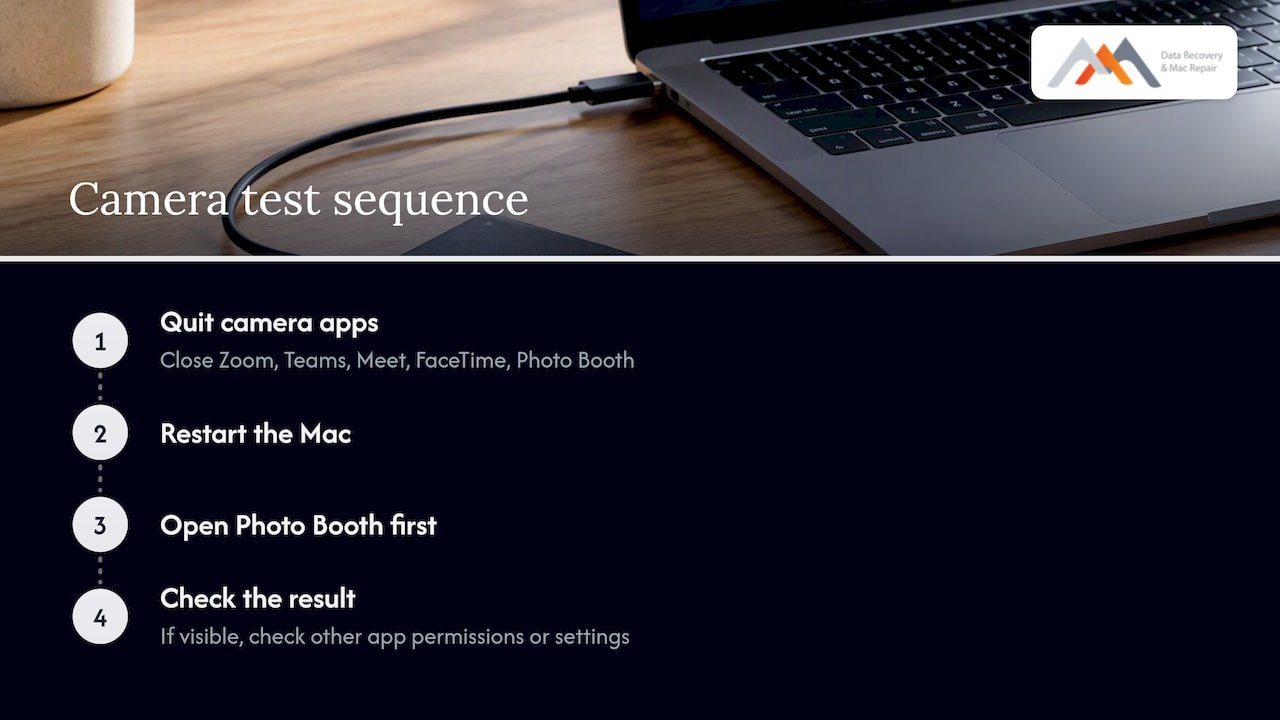
Quit every app that might hold the camera: Zoom, Teams, Google Meet in a browser, FaceTime, Photo Booth. Only one program can use the camera at a time, so a video call left open in the background can make another app show a black screen. Restart, then open Photo Booth first. If Photo Booth shows you, the camera is fine and the problem sits in the other app’s permissions or settings.
Match the symptom to the likely cause
What you see on screen narrows the cause quickly. Use this table as a triage guide, not a diagnosis; a technician confirms it on the bench.
| What you see | Most likely cause | What to try | When to book a repair |
|---|---|---|---|
| Camera works in Photo Booth, not in one app | App permission or app version | Privacy & Security, then Camera; update the app | Rarely |
| Black screen, app says camera is in use | Another app or browser tab holding the camera | Quit all video apps, restart | Rarely |
| Camera works for a moment, then drops | Software conflict or loose connection | Update macOS, test a new user account | If it recurs in every account |
| Every app says no camera available | Camera not detected by macOS | Restart, SMC reset on supported Intel Macs | Yes, likely hardware |
| Green light on, no picture | Module, cable or image signal fault | Test in Photo Booth and QuickTime | Yes |
| Camera died alongside flickering or other display symptoms | Display cable or logic board issue | None that are reliable | Yes, same day if possible |
| Camera failed after liquid exposure or a drop | Physical or corrosion damage | Power off, do not charge | Yes, immediately |
Why a reinstall rarely solves a dead camera
When a camera is truly missing from the system, many owners reach for a full macOS reinstall. That wipes time and sometimes data, and often changes nothing. Persistent camera faults often trace to the connection between the logic board and the display assembly, especially on older models, and software resets such as SMC and NVRAM are frequently ineffective when a ribbon cable or other physical part has failed. One Apple Community discussion shows a MacBook Pro owner who tried a PRAM/NVRAM reset and a macOS update and still had a display fault, a pattern consistent with a physical connection.
On a MacBook the camera, microphone, ambient light sensor and display sit in the lid, and their signals travel to the logic board through a flex cable that bends every time you open and close the lid. Over years that cable can crack or loosen. If your display also flickers, shows lines, or the backlight misbehaves, the camera may share the same root cause. See our notes on MacBook screen lines and backlight failure, where we check first and restore only what is needed.
If you manage a fleet of Macs and want a second opinion on whether a reinstall is justified before wiping machines, a managed IT support provider can look at configuration and security profiles remotely, which is a reasonable step before any hardware visit for software-suspected cases.
Hardware causes a bench technician checks
When the software path is exhausted, we examine the Mac in this sequence:
- Display and camera flex cable. We reseat the connector and inspect the cable for creases, tears and corrosion.
- Camera module. We test the module for a signal, and replace it if it is dead.
- Power rails and connector circuits on the logic board. If the module is healthy but the board does not supply or read it, the fault is on the board.
- Logic board component repair. With precision micro-soldering we can repair individual components, rather than replacing the entire board, which on Apple silicon Macs matters because the SSD storage is soldered and your files live on that board.
- Liquid residue. Even a spill that seemed to dry can leave corrosion that appears weeks later as a failed camera or keyboard. Our liquid damage repair page explains the process.
For a deeper look at board-level work, read our MacBook logic board repair guide.
If you also lose access to your files
Sometimes a camera failure is the first visible sign of a bigger fault: the Mac is crashing, a liquid event has occurred, or the drive will not mount. Stop all disk writes immediately. Do not keep trying to boot, do not reinstall macOS, do not run repair utilities, and do not save new files to the drive. Every write on an APFS volume or an NVMe SSD can overwrite the blocks you need, and on SSDs the controller can permanently erase deleted data in the background. Our guide on whether SSD data can be recovered explains why speed matters.
If the machine is also affected by a suspected ransomware infection, current CISA guidance favors isolating the machine from the network over powering it off abruptly, because a hard shutdown can lose volatile memory that may hold forensic evidence or keys. For a plain hardware fault, power it down normally and bring it to us.
| Situation | What to do | What not to do |
|---|---|---|
| Camera dead, files accessible | Back up with Time Machine, then book diagnostics | Reinstall macOS before backing up |
| Camera dead and Mac will not boot | Power off, do not retry repeatedly | Run disk repair tools on the internal drive |
| Liquid spill, camera and keys failing | Power off, do not charge, call us the same day | Dry it with a hairdryer or rice |
| Suspected ransomware | Disconnect Wi-Fi and Ethernet | Force a hard shutdown unless advised |
| RAID or NAS in the office also degraded | Leave the array as it is, label the drives in order | Rebuild a RAID 0, 1, 3 or 5 set blindly |
Our perspective: diagnose before you replace
We see the same pattern repeatedly in our West LA lab: a customer arrives having reinstalled macOS twice, reset the SMC and NVRAM, and created a new user, and the camera is still gone. Those steps cost hours, and for a hardware fault they cannot work. Our view is that a camera that macOS does not detect at all should be diagnosed on the bench, with the display cable and board inspected under magnification, before anyone wipes a machine.
We also think the repair decision should be shaped by the data. A Mac with a failed camera and a healthy SSD is a simple repair. A Mac where the board fault threatens access to a soldered SSD needs a different plan, with the data secured first. That is why we offer free diagnostics, and why our no recovery, no charge policy applies when files are the priority. Apple Stores often deem some Apple silicon logic board faults unrecoverable. Our in-house engineering, with micro-soldering and forensic imaging, lets us attempt component-level repair on those machines.
— Kaya
Same-day Mac camera diagnosis in West Los Angeles
Macwest Data Recovery & Mac Repair has served Los Angeles since 2006. Our lab is at 12041 Wilshire Blvd, Ste 26, between the 405 and Santa Monica, near UCLA and the Getty Center. We serve Westwood, Brentwood, Santa Monica, Beverly Hills, Venice, Hollywood and Culver City, and we emphasize same-day appointments for emergencies. Diagnostics are free, and our Mac repair service covers MacBook Pro, MacBook Air, iMac, Mac Mini and Mac Pro. If your files are at risk, our Mac data recovery team handles internal SSDs, external drives, memory cards and RAID. Call 310-866-0828 to book.
Before you come in
- Back up what you can with Time Machine if the Mac still boots normally.
- Note which apps fail and which work, and whether Photo Booth shows an image.
- Tell us about any drop, spill or recent macOS update.
- Bring your charger, and your Apple ID details if Find My is on.
- If you use FileVault, know your login password or recovery key, because encrypted drives cannot be read without it.
For general repair background, our guide to common MacBook issues has more fast fixes.
FAQ
Why is my MacBook camera not working in FaceTime but fine elsewhere?
Usually it is an app-level block. Check Privacy & Security, then Camera, and Screen Time under Content & Privacy, then quit and reopen FaceTime. If another app sees the camera but FaceTime does not, update macOS and test again with a new user account.
Why does my Mac say no camera is available or not detected?
If a restart does not bring it back, macOS cannot see the camera hardware. That points to a display cable, camera module or logic board fault. Software resets are unlikely to help, so book a diagnostic.
Why is my Mac camera just a black screen with the green light on?
The light means the camera has been told to run, so permissions are not the issue. Another app may be holding it, so quit everything and test in Photo Booth. If it stays black, the module or its cable is likely failing.
Do I need to reinstall macOS to fix the camera?
Rarely. A reinstall only helps if corrupted system software is the cause, and it risks your data if you have no backup. Try the permission, Screen Time and update checks first, and have a technician check the hardware if the camera is not detected.
How much does a MacBook camera repair cost?
We do not publish a price for camera repair, because it depends on whether the fault is a cable, module or board component. We diagnose for free and give you the cost before any work begins. Call 310-866-0828 for a same-day appointment.
Sources
- If the built-in camera isn’t working on your Mac, Apple Support
- Thunderbolt and Camera hardware not detected after upgrading to Catalina, Apple Community
- MacBook Pro 2017 screen flickering, Apple Community
- I’ve Been Hit By Ransomware, CISA